Automations Without Code: Make.com vs. Cursor
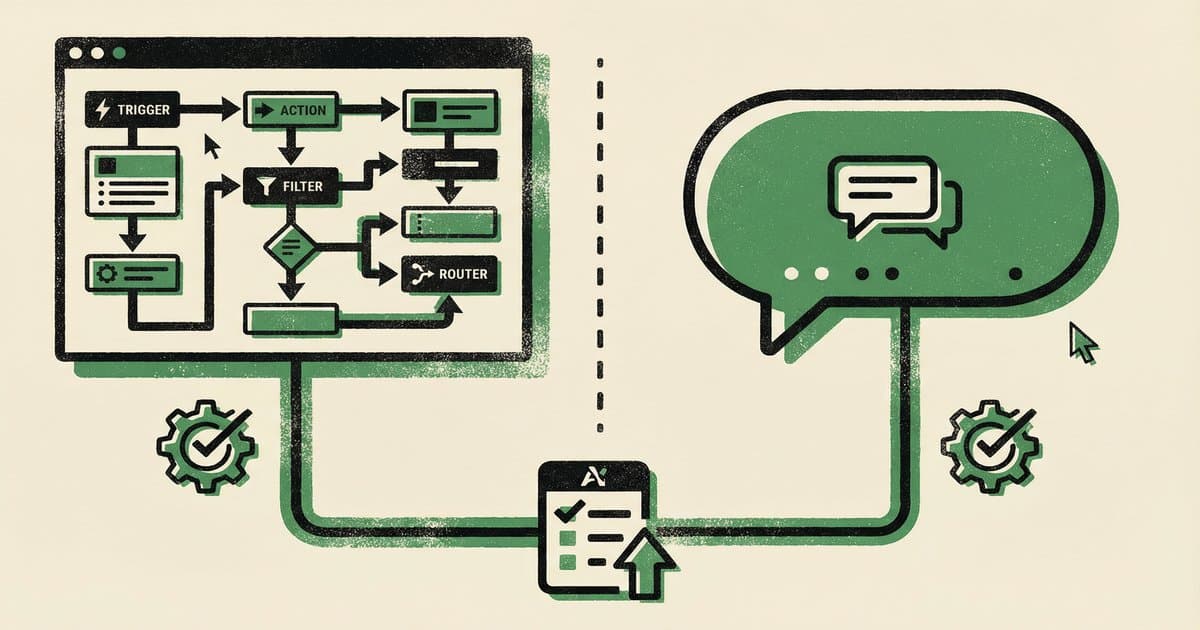
Two paths to automation. One visual. One conversational.
Automation is where AI goes from interesting to indispensable. The question is: which tool do you use to set it up?
Make.com: The Visual Approach
Make.com (formerly Integromat) is essentially computer programming using a visual interface. You connect blocks together: trigger, action, action, output.
Want to listen for a tweet, process it through OpenAI, and create an Instagram post? That's three blocks connected by arrows. Drag, drop, configure, run.
Strengths: Visual and intuitive. Great for people who think in flowcharts. Hundreds of pre-built connectors to services like Slack, Google Sheets, and social media platforms.
Limitation: You can't vibe code it. The interface is fixed. If Make.com doesn't have a connector for what you need, you're stuck writing custom modules.
Cursor: The Conversational Approach
In Cursor, you describe what you want in plain English. "When a new signup comes in, send them a welcome email, add them to the subscriber spreadsheet, and create a calendar reminder for follow-up."
Cursor writes the automation code, connects to the services via MCP servers, and runs it.
Strengths: No interface limitations. If you can describe it, Cursor can build it. Full flexibility.
Limitation: Requires some technical setup (Node.js, project structure, MCP configuration).

Same automation. One is a flowchart. The other is a conversation.
Start with Make.com if you've never automated anything before. The visual interface helps you understand the logic of automations -- triggers, conditions, actions. Once that clicks, move to Cursor for unlimited flexibility.
What We Actually Do
We use Cursor for almost everything because the flexibility is worth the setup cost. Scraping investor relations documents, processing CSVs, sending bulk emails, generating content — all through conversational prompts in Cursor. It's why we say you don't need Mailchimp anymore.

No walls. If you can describe it, Cursor can build it.
Make.com still has a place for quick, simple automations that don't need custom logic. But for anything complex, Cursor wins because there are no walls.

Chris Johnston
Chris Johnston is the founder of PostScarcity AI and The Vibe Jam. Former development agency leader who managed 8 agile teams for venture-backed clients. Now teaching non-technical people to build with AI through vibe coding. Book a free Vibe Check to get started.
More About Chris Johnston